
Complete Coupled Suite Tutorial
Smart Support Bot & Smart Support Manager Tutorial Article
Both programs operate as one tightly integrated workflow: build AI catalogs and map screenshots in Smart Support Manager on Windows, deploy with one click over SSH, and support customers live through Smart Support Bot on Telegram.

How Bot & Manager Work Together
- Smart Support Manager (Windows): Opens locally at
http://127.0.0.1:8766to parse docs/code, generate draft catalogs, organize screenshot mappings, queue SSH uploads, and install server services. - Smart Support Bot (Linux VPS): Runs continuously under
/opt/smart-supportand reads every publishedcatalog.jsonand mappedmedia/folder under/opt/smart-support/products/<id>/. - Seamless Handshake: Your support team updates knowledge safely in a visual browser UI while Telegram users always receive accurate, product-isolated guidance.
Recommended Setup Order
- 1. Connect Infrastructure: Launch
Start-Smart-Support-Manager.bat, then configure VPS SSH login and AI keys inSettings. - 2. Build & Map Product Content: Register product IDs & sources in
Products, generate & publish inCatalog, and upload/map images viaUpload Queue,Media, andCatalog photos. - 3. Deploy & Verify: Run the 3 deployment buttons on
Install bot, test/startandAsk AIin Telegram, and monitor audit records inHistory.
1. Dashboard, Live Status Pills & Quick Overview (Dashboard)
Launching Start-Smart-Support-Manager.bat opens the local web panel at http://127.0.0.1:8766. The Dashboard shows real-time health across local Expert, AI, and VPS:
- Top Connection Status Pills: Live badges for
Server(VPS SSH connection),Expert + AI(Manager catalog AI engine), andExpert + bot + AI(full end-to-end bot sync). - 4-Language Web Switcher: Switch Manager's interface instantly between
فارسی,English,Русский, and中文in the top-right bar. - Workspace Telemetry & Quick Flow: Review active product count, queued uploads, and the quick 5-step operational summary.
Server badge turns green.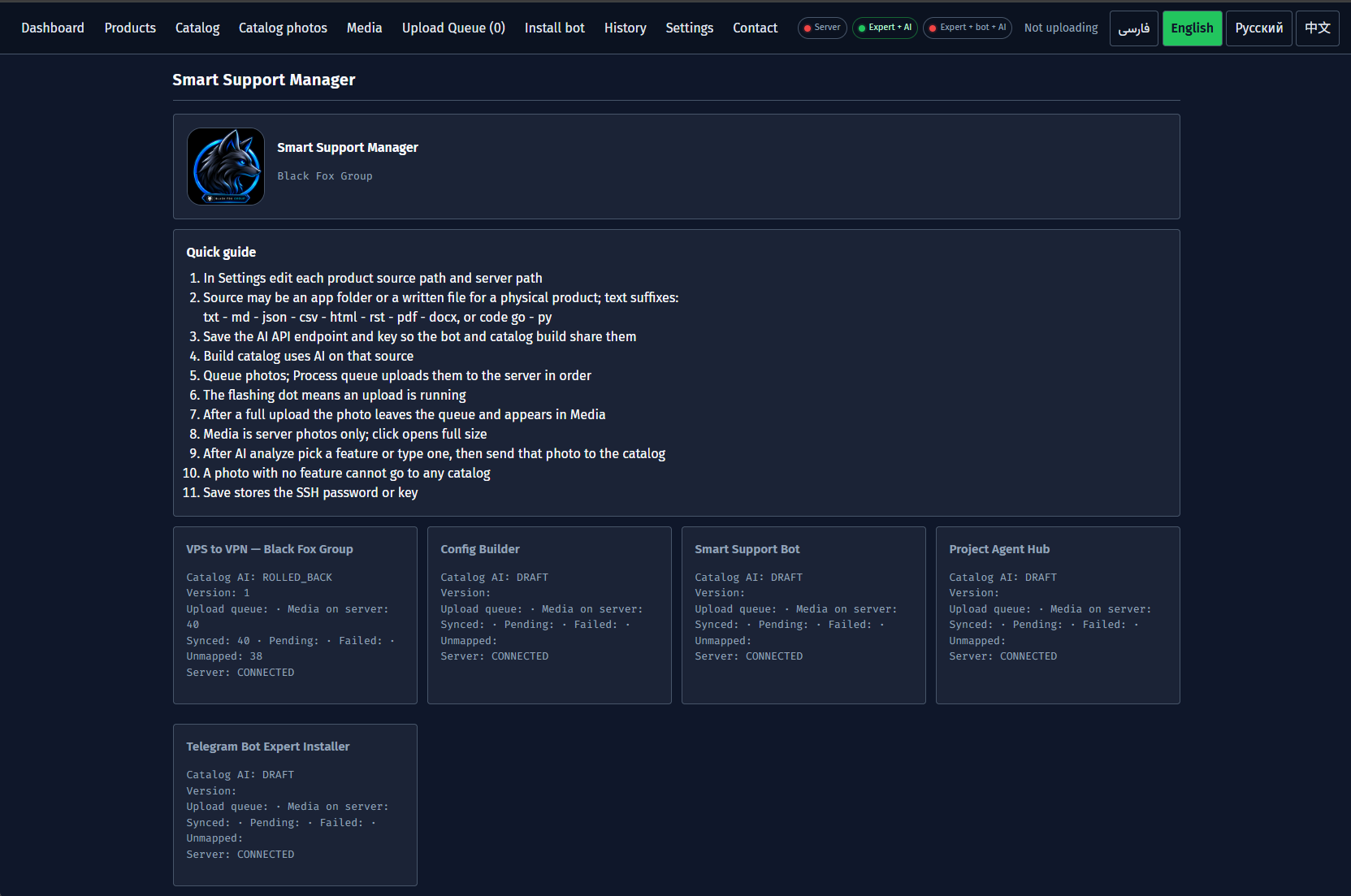
2. Registering Products & Knowledge Sources (Products)
Use the Products tab to define each application or service supported by your Telegram bot:
- Product Identity: Assign a URL-safe
Product ID(for examplevpn-installer) and the display label shown in Manager and Telegram menus. - Multi-Format Source Folders: Point Manager to local folders or files containing
TXT,MD,JSON,CSV,HTML,PDF,DOCX,Go, orPythonfiles. - Image Folder & Fixed Server Path: Select the local screenshots folder; remote storage is standardized at
/opt/smart-support/products/<id>. - Active Switch (
On / Off): Toggle a product Off to pause visibility in Telegram menus and AI without deleting its server files.

3. AI Catalog Generation, Human Review & Publishing (Catalog)
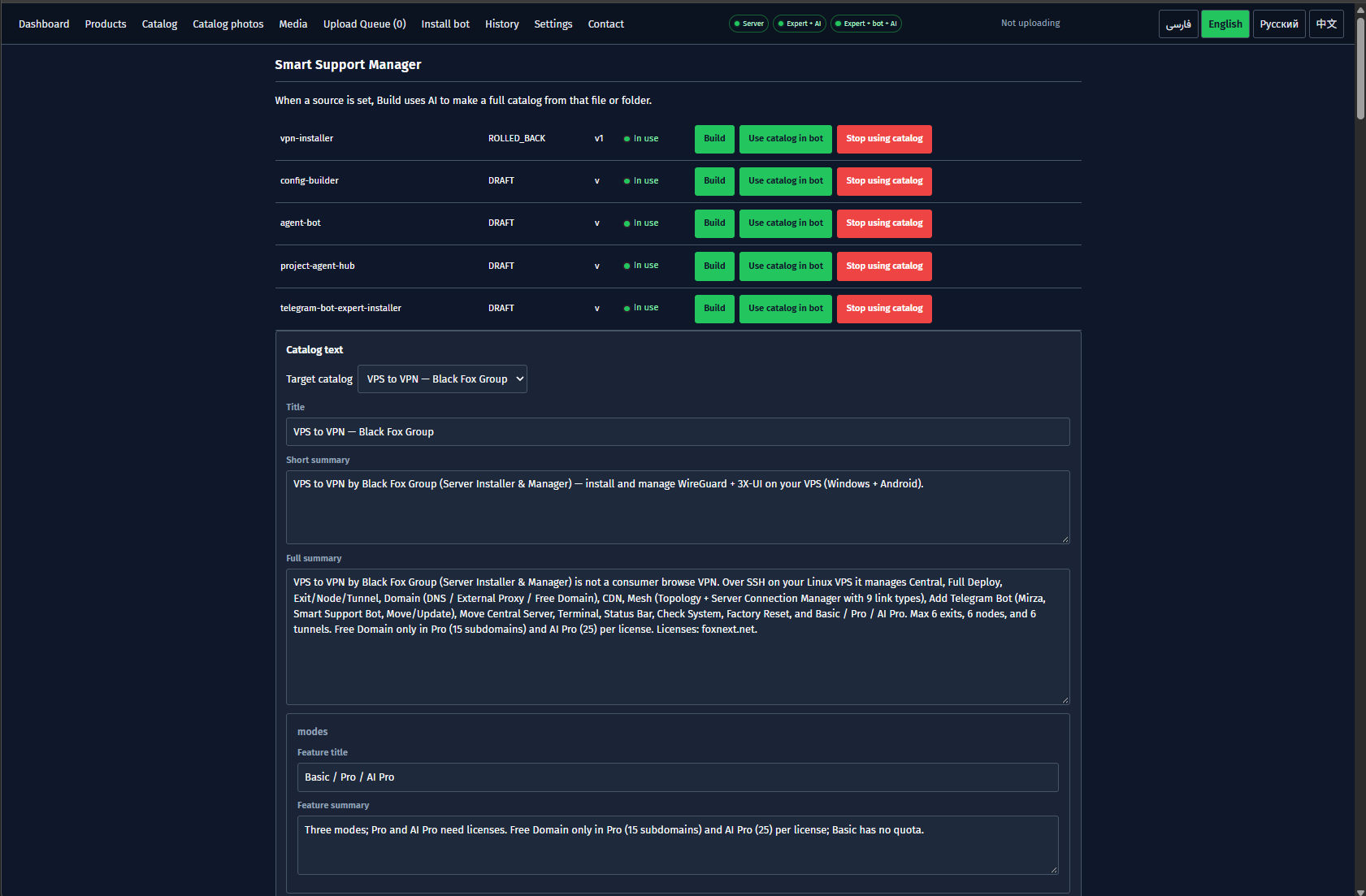
The Catalog page converts raw docs and source code into structured support entries ready for Telegram:
- Auto-Build Drafts: Select a product and trigger AI generation to extract title, short summary, full overview, and structured feature entries.
- Review & Edit Every Entry: Refine wording directly in form boxes or add/edit individual features (such as
SettingsorList) so the bot matches exact terminology. - Publish to Telegram (
Use catalog in bot): ClickUse catalog in botto upload the reviewedcatalog.jsonand make it active on the server, orStop using catalogto unpublish.
4. Upload Queue, Media Scanning & Catalog Photos (Upload Queue / Media / Catalog photos)
Smart Support Bot automatically attaches relevant UI screenshots to Telegram guides. Manage media cleanly across three coordinated tabs:
- Ordered
Upload Queue: Select local screenshots (even outside the main product folder) and clickProcess waitingto upload them safely one by one over SSH. MediaLibrary & AI Matching: Inspect all scanned screenshots for the selected product and run AI analysis to suggest matching catalog features.Catalog photosGallery: Review mapped photos per catalog feature, click thumbnails to open full-size lightbox previews (Esccloses), adjust mappings, return photos to Media, or remove unused files.
Catalog photos are sent automatically alongside Telegram answers.


5. One-Click Bot Installation & AI/Server Settings (Install bot & Settings)
Deploy both server services—Smart Support Bot and the remote Expert coordinator—without manual SSH scripts:
Install botServer & Token Setup: Enter VPS host, SSH port (22), username/password or SSH key, localSmart Support Botfolder, and Telegram Bot Token from@BotFather.- Choose
PollingorWebhook: KeepPolling — no webhookfor instant domain-free operation, or enter your HTTPS public base URL and internal webhook port (8080) behind a reverse proxy. - 3-Step Server Deployment: Click
1. Install bot, then2. Install Expert, then3. Activate bot and Expertto start both systemd services. Settings&Stop all: Save SSH credentials, configureBot AI(API endpoint, model, API key), sync viaConnect Expert to bot and AI, or halt active Manager jobs anytime usingStop all.
.env files.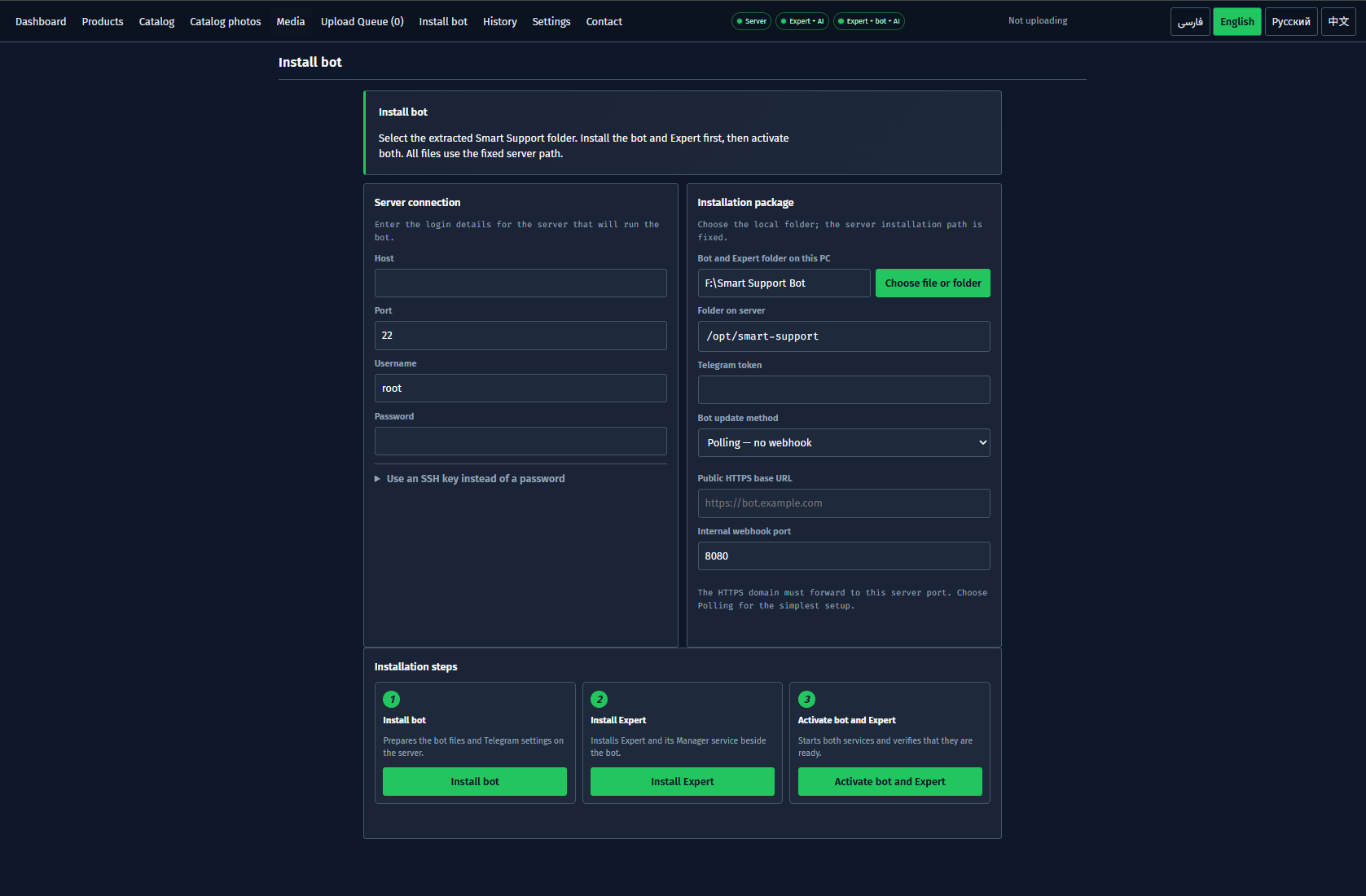

6. Using the Telegram Bot, Audit History & Contact (Telegram Bot, History & Contact)
Once activated, end-users interact seamlessly inside Telegram while admins maintain full visibility from both Telegram and Manager:
- Telegram User Flow: Sending
/startor/langpresents 4 languages (فارسی,English,Русский,中文). Users browse active products via reply keyboards, open illustrated feature guides, or tapAsk AIfor product-scoped answers./menuand/helpwork anytime. - Telegram Admin Commands: Authorized admins can run
/agents,/active_agent,/failover,/safety_status, and/catalog_scandirectly in private admin chat, or manage agents and forwarding inside Admin Settings. - Manager
HistoryLog: Tracks timestamps, modified files, actions (save_catalog_text,publish_catalog_to_bot,connect_server), target VPS, andok / FAILEDstatus. - Manager
ContactPage: Houses official GitHub links, website URL, and the copy-ready one-command Windows PowerShell installer.
/catalog_scan in admin Telegram chat or click Use catalog in bot again in Manager.

7. Frequently Asked Questions & Troubleshooting (FAQ)
| Question or Symptom | Likely Cause | Resolution |
|---|---|---|
| Edited catalog is not appearing in Telegram | Changes were saved locally without publishing or the product toggle is Off. | Confirm product is On in Products, then click Use catalog in bot inside Catalog. |
| Bot replies with text but omits screenshots | Images remain unmapped in Media or failed to reach Catalog photos. | Upload via Upload Queue and map each image to a feature in Media / Catalog photos. |
| Webhook mode stops receiving Telegram updates | HTTPS domain reverse proxy is not forwarding traffic to internal port 8080. | Switch to Polling — no webhook in Install bot or verify SSL + proxy forwarding. |
| Server status pill remains red | Incorrect host IP, SSH port, username, password, or SSH private key path. | Update credentials in Settings → Server connection, click Save, then Connect. |
| Catalog generation or Ask AI times out | Invalid OpenAI-compatible endpoint, model name, API key, or network block. | Verify API endpoint, model, and key in Settings and test with Connect to AI. |
| Can one bot support multiple unrelated products? | Yes — every product runs in an isolated folder and AI scope. | Create a separate Product ID per app in Products; knowledge and screenshots never cross over. |